Change Default Funding Source
Last updated: March 20, 2026
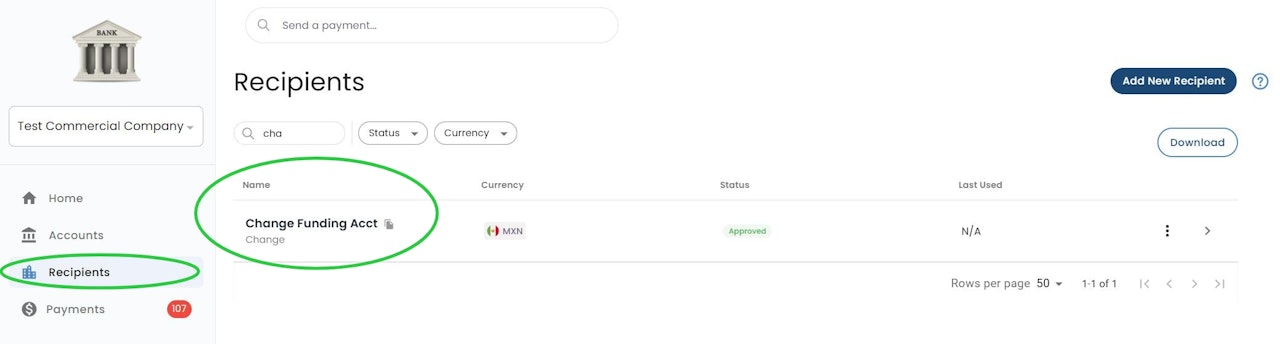
Navigate to Recipients
Select the "Recipients" menu and select the recipient you would like to edit
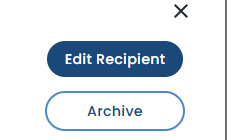
Edit Recipient
Click "Edit Recipient" in the recipient's detail modal.
The Recipient will be unable to receive payments until the edits are approved by another user.
Users cannot edit recipients if there are any open payments. Any open payments need to be completed or rejected before any edits can be made. Select "Edit" Recipient on the right side of the screen
Change Funding Account
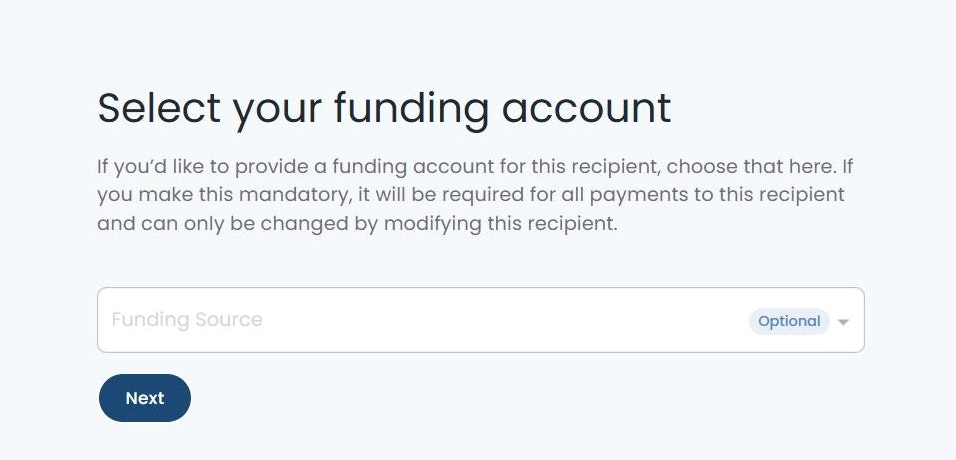
Select "Next" on the first page to reach the Default Funding Account Template page.
Use the drop down menu to select the proper funding account.
Selecting the "Mandatory" checkbox will force the selected source account to be used when making a payment to the recipient. Users will not be able to select other source accounts.
Submit Changes
Select Next through the rest of the form and select "Submit" to submit the changes for approval.
If dual approval is enabled, another user with dual approver permissions will be required to approve the recipient before the recipient will be available for payment.