Subsidiary User Access Controls
Last updated: June 18, 2026
Feature Overview
Administrators can now control which users have access to specific subsidiary companies within their organization. This is useful for companies that use a parent profile primarily as a holding entity, where individual users should only interact with the subsidiaries relevant to their role, or any variation of the parent and subsidiaries related to the parent.
Enabling Subsidiary User Management
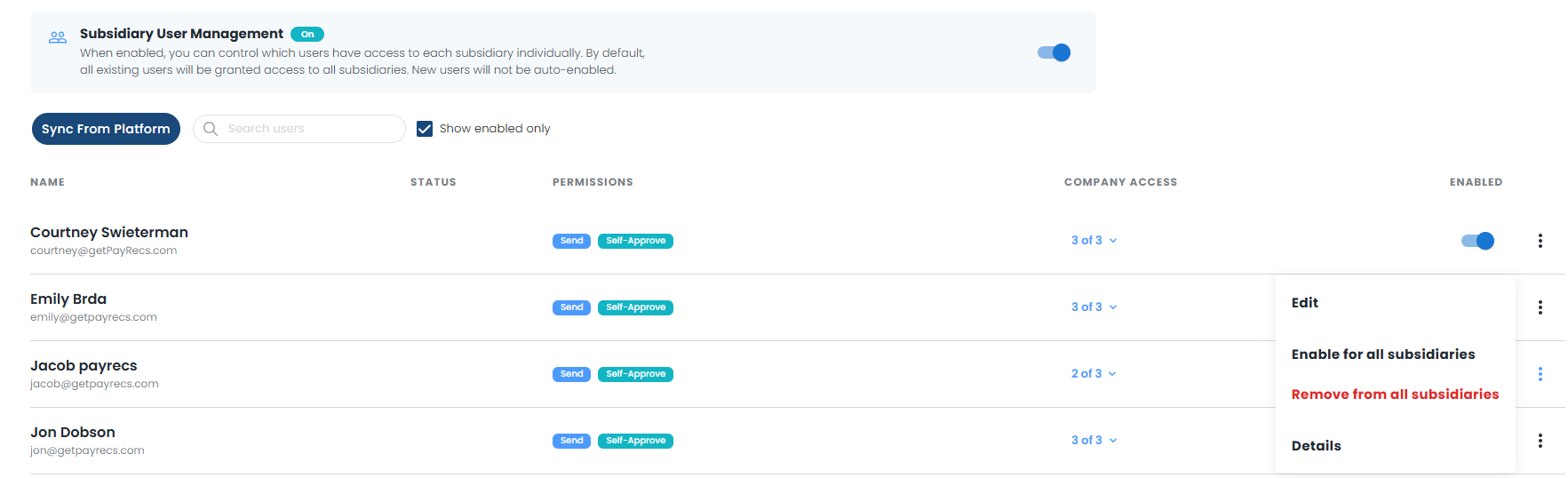
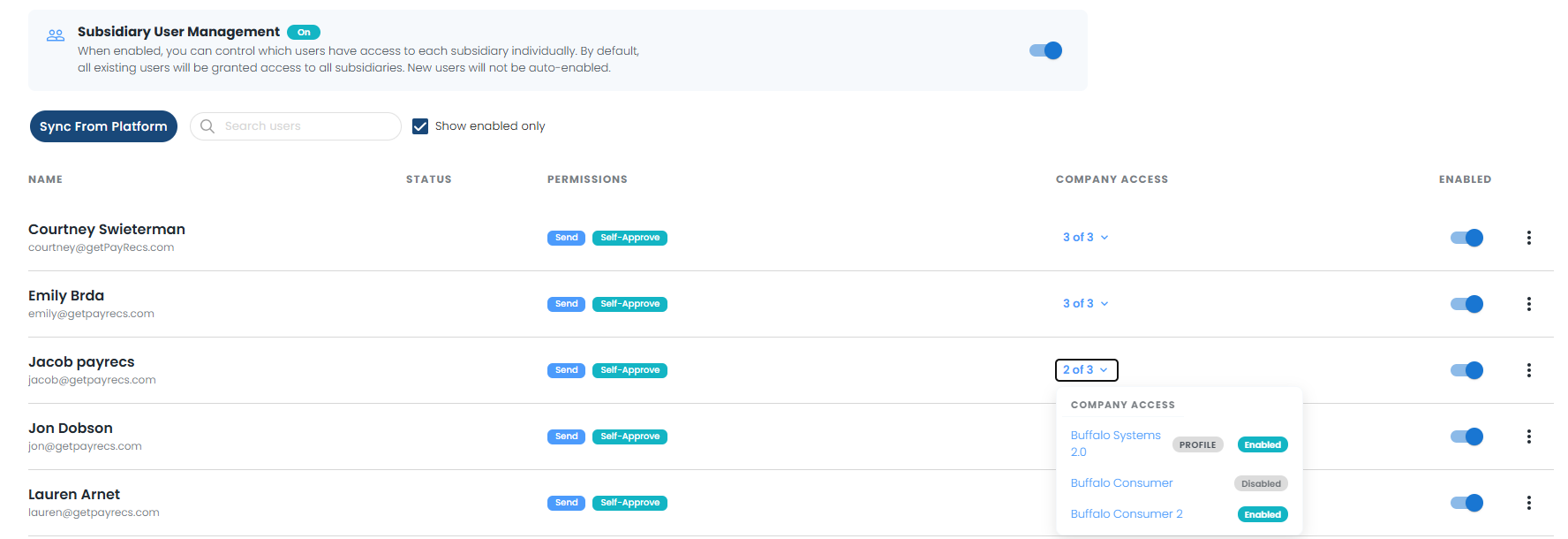
This feature is enabled at the profile (parent company) level. Once turned on, a new Subsidiary Access column appears on the Users list, showing each user's access status across all subsidiaries.
Subsidiary names are clickable — clicking one takes you directly to that subsidiary's People tab.
The three-dot menu on each user includes options to Enable or Remove access across all subsidiaries at once.
Note: When this feature is first enabled, all existing profile users are automatically granted access to every subsidiary. You can then adjust access for individual users as needed.
Managing Users at the Subsidiary Level
Each subsidiary now has a dedicated People tab listing all users at the profile level.
From this view you can:
Toggle access on or off for individual users using the checkbox next to their name.
Use the Enable All / Disable All buttons in the header to bulk-update access for all users at once.
Users who are disabled at the parent profile level (e.g., Q2 disabled or PayRecs disabled) will appear greyed out with their status indicator — their access cannot be toggled at the subsidiary level until they are re-enabled at the profile level.
Admin Disable
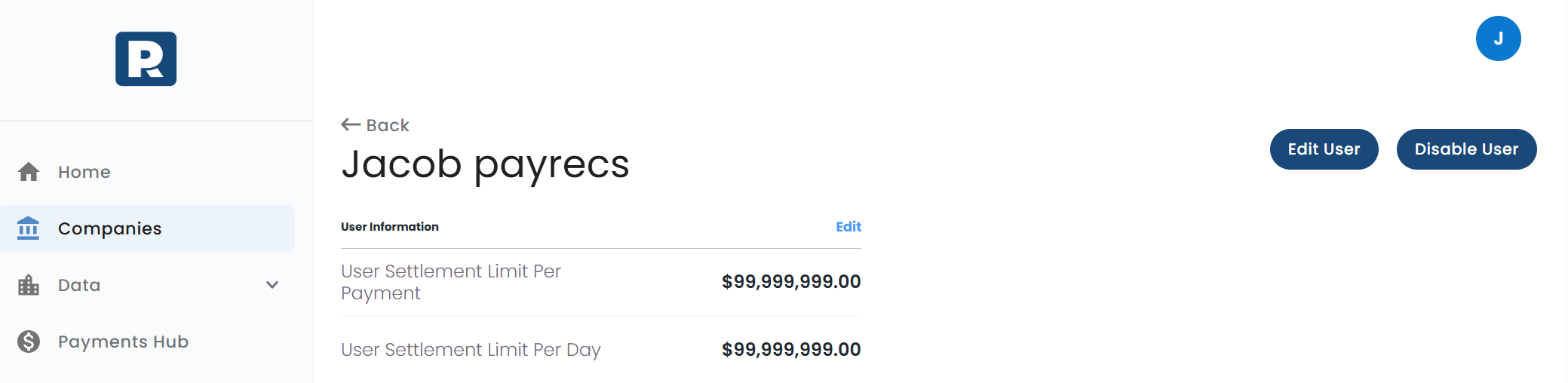
To completely disable a user, previously present under the 3 dot menu is now accessible under the User's details. Select the user's name to navigate to their overview. Disable User will be present under this menu.
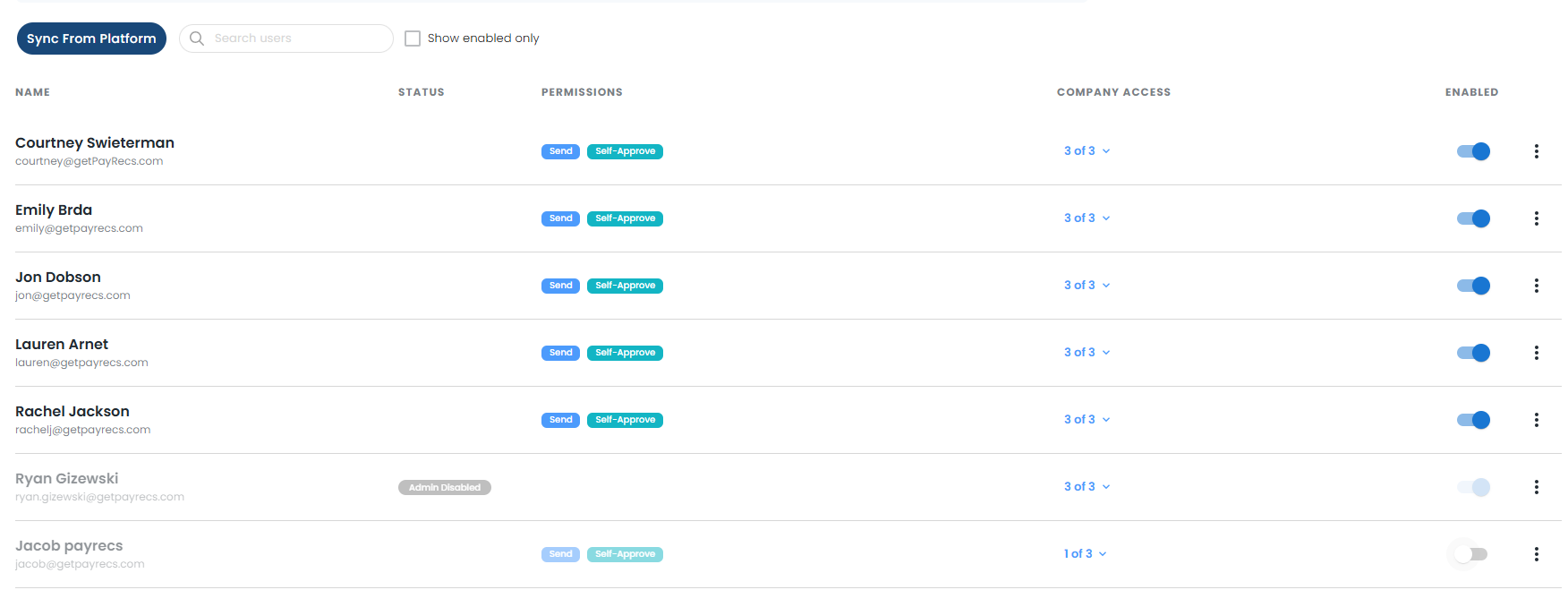
The user will have an "Admin Disabled" badge if disabled, removing access to PayRecs completely.
Greyed out users w/o this badge simply do not have access to the specific company.
Show Enabled Only will hide any users that do not have access to the specific company. If you cannot find a user, uncheck the box to see if their access has been removed from the specific company.
User Experience — Company Switcher
Users will only see companies and subsidiaries they have been granted access to in the company/context switcher. Any subsidiary they have been removed from, or that is disabled, will not appear in their list.
Key Behaviors to Know
Scenario | What Happens |
|---|---|
Feature first enabled | All profile users get access to all subsidiaries automatically |
Feature later disabled | Access settings are preserved; re-enabling restores prior state |
User disabled at profile level | Appears greyed out in subsidiary People tab; subsidiary toggle is unavailable |
Bulk Enable → Disable → Enable quickly | Buttons lock until all changes are saved to prevent conflicting updates |
Summary
This feature gives administrators fine-grained control over which users can access which parts of their organization, without needing to remove users from the platform entirely. Access can be managed at both the profile level (across all subs at once) and at the individual subsidiary level.