Generating an End of Day (or Other) Report in the Partner Portal
Last updated: July 7, 2026
Overview
This same process works any time you need to regenerate or back-fill a report for a specific window.
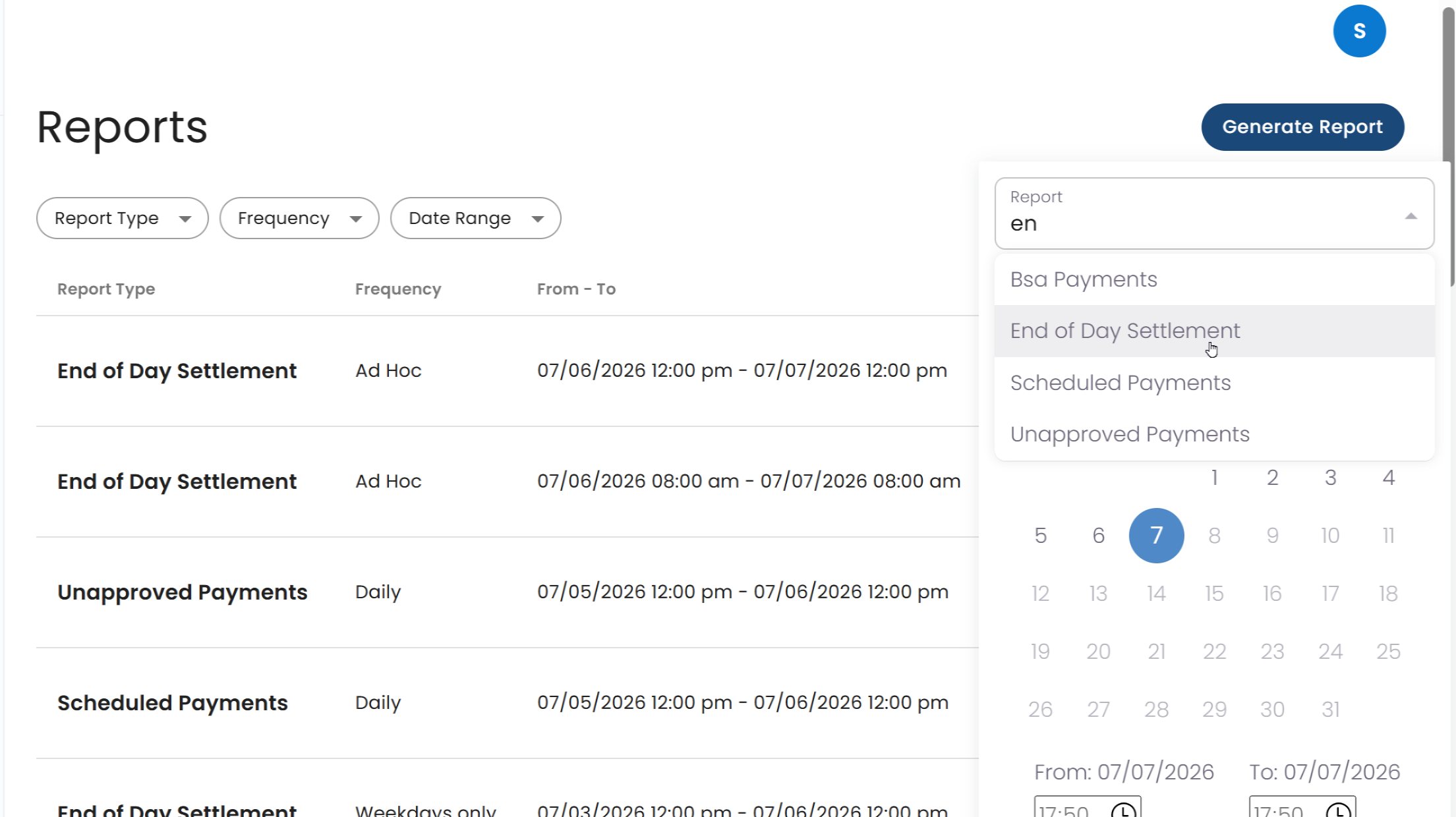
Steps
Log in to the Partner Portal.
Open the Reports page from the left navigation.
Click Generate Report in the top right.
Under Report, select the report you need (for example, End of Day Settlement).
Under Date range, choose a custom range rather than All Time.
Set the From and To dates to cover the missed period, July 6 to July 7.
Set the From and To times to match your end-of-day cutoff (see the example below).
Click Run, then download the report when it finishes.
Setting your time window
Match the time filter to your own end-of-day cutoff so the report captures exactly one settlement day.
If your end of day is 4:00 PM, set the window from 16:00 on July 6 to 16:00 on July 7.
Your end-of-day cutoff | From (July 6) | To (July 7) |
|---|---|---|
4:00 PM | 16:00 | 16:00 |
5:00 PM | 17:00 | 17:00 |
6:00 PM | 18:00 | 18:00 |
Midnight | 00:00 | 00:00 |
Use your own cutoff time if it differs from the examples above.
Important note on time zones
The times shown in the Reports list (the From to To column on the main Reports page) are displayed in UTC, not your local time zone.
The time filter inside the Generate Report panel uses your local time zone, which is correct. Enter your cutoff in local time there as normal.
In short: enter your cutoff in local time when generating the report, and expect the resulting entry in the Reports list to show in UTC.
Need help?
If you do not see the report you expect, or the totals look off, reply to this message or contact support and we will pull it for you.