SFTP
Last updated: June 23, 2026
SFTP Access & Key Generation
In order for you to access our SFTP server that will have specified reports for your organization, please follow these instructions.
Generate Public and Private Keys
On macOS, Linux, or UNIX operating systems:
Open a command terminal. For instance, in Windows Powershell (key_name is your SSH key pair file name. Designate something like "yourBankName"). See recommended encryption types below.
Here’s how to generate an SSH key pair
ssh-keygen -t ed25519 -f my-ed25519-key -C "your_email@example.com"
Breakdown:
-t ed25519: specifies the key type algorithm (make sure this is compatible with your system, using any of the supported options below)-f my-ed25519-key: sets the output file name (private key:my-ed25519-key, public key:my-ed25519-key.pub)-C "...": adds a label/comment (like your email), and is optional
2.Provide the pub (public key) to implementation@getpayrecs.com
3. Once received, we will provide connection details.
When you've received the connection details, continue to the next step to configure your SFTP client.
Recommended Encryption Types:
Algorithm | Status | Notes |
| ✅ Secure, widely supported | RSA with SHA-256, good fallback for compatibility |
| ✅ Secure, less common | Uses SHA-512, secure but rarely needed over SHA-256 |
| ✅ Secure, but... | Widely used, though some cryptographers prefer Ed25519 due to NIST skepticism |
| ✅ Secure, less common | Larger key size, similar caveats as above |
| ✅ Secure, rarely used | Largest of the NIST ECDSA curves, slower, niche use |
| ✅ Preferred | Fast, compact, secure, modern default across many platforms |
SFTP Client Configuration
Using the private Key and Connecting
1. The process from the previous step will also generate a private key file (it may have a ppk extension and will be in the same location as the pub file).
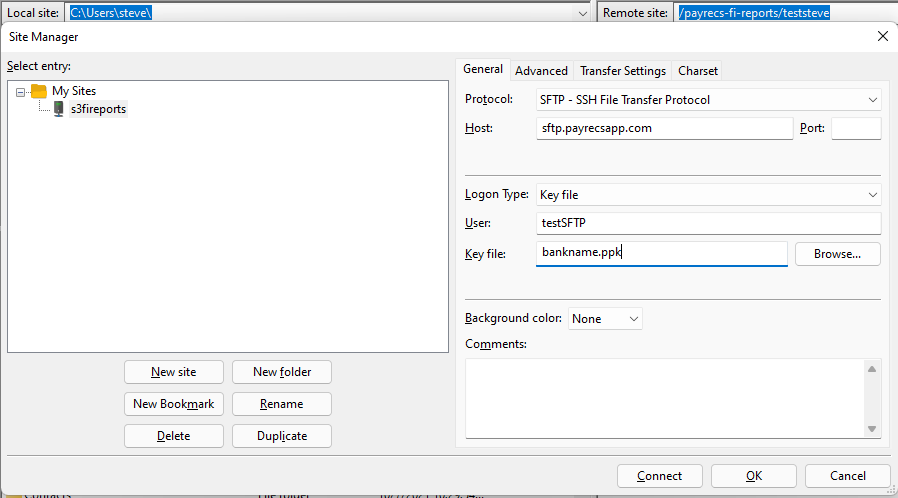
2. Using your SFTP client, create a new connection.
Protocol: SFTP
Host: sftp.payrecsapp.com
User: provided by PayRecs.
Key file: this will be the ppk/private key generated from the previous step.
3. Once connected, you will have access to a private folder containing reports.