Bulk Payment Upload
Last updated: March 20, 2026
Bulk uploading payments utilizes a specifically formatted csv file to create all of the payments at once. Multi-Factor Authentication and Dual Approval is still utilized if it is enabled. If this option is not available, please reach out to your Financial Institution to have it enabled for your company.
Recipients to be used in this workflow need to already be created and ready for payment in order to send payments in bulk.
Obtain Recipient IDs of the recipients being used for bulk upload
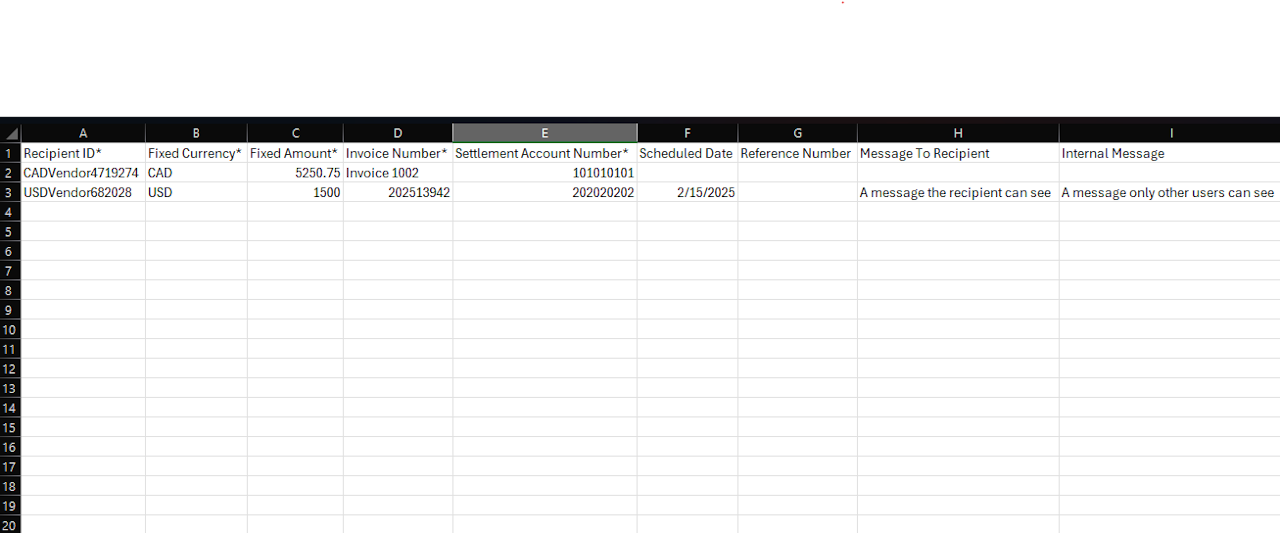
Download the Payment template and fill in the required columns(marked w/ an asterisk)
Upload the file and select the Upload option
Review the results for any error message and consult the Error Messages noted below for assistance if necessary.
Export Recipients
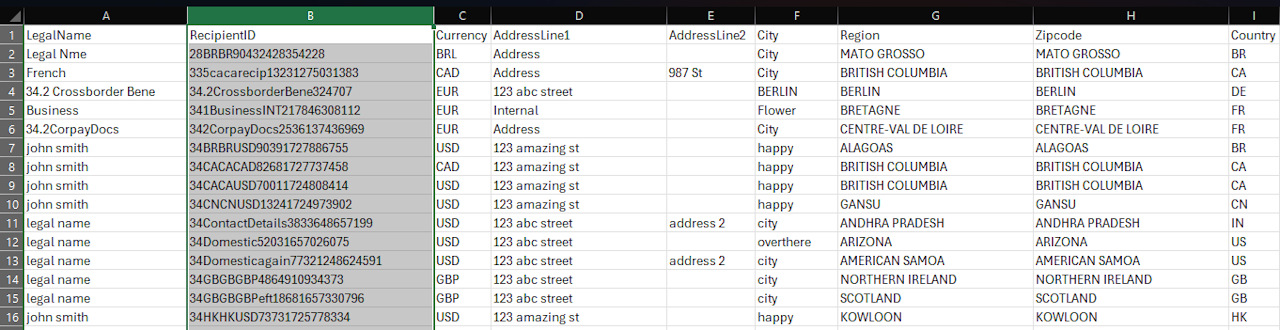
To download all recipients available for a payment, either select the Export button in the Bulk Upload wizard or navigate to the Recipients menu and select Download.
You will need to copy only the RecipientId from this export for future steps in the bulk upload process. The remaining fields in this export are only informational.
Additionally, you can copy individual recipient Ids directly from the recipient list. If the recipient is ready to use for a payment a copy button will be available next to the name of the recipient
Payment Template
Important to Note:
Columns marked with an asterisk are required
Beware of leading/trailing spaces when entering data. This could cause upload issues.
If Microsoft Excel is used to edit this template please note these restrictions:
Leading 0s are not allowed in the Settlement Account Column
Removing data from a row and leaving it blank in the template will still treat it as a payment resulting in "Recipient ID is missing in column 1" error. This can be disregarded as no payment will be created.
Recipient ID*
Provided by downloading the export of recipients
These can also be copied from the Recipients list using the button next to the Recipient name.
Fixed Currency*
Enter the currency you would like to be fixed. i.e. USD, CAD, EUR, etc.
Fixed Amount*
If a foreign currency is being sent, the non-fixed currency will automatically be calculated based on market rates. If Fixed Currency is USD, this amount will be debited from your account. If Fixed currency is a foreign currency, the recipient will receive the set amount.
Invoice Number*
Enter in invoice details or a description of this payment
Settlement Account Number*
Enter the account number in which you would like funds to be debited.
Scheduled Date
Leaving blank will create the payment immediately upon upload, entering a future date in the following format will schedule the payment for that date i.e. MM/DD/YYYY(If applicable, payment approval is required for scheduled payments)
Reference Number
Optional field for additional information regarding the payment.
Message To Recipient
This message will be presented to the recipient if you would like to provide a custom message. Only applies to recipients created with contact details.
Internal Message
This message will be presented to any internal team members approving this payment
Purpose of Payment:
Optional. Leaving blank will use the Purpose of Payment code selected when creating the recipient. If this payment requires a different purpose of payment, copy and paste the appropriate option from the list available in the link below.
Error Messages
Please check for any leading or trailing spaces in any of the fields of the upload file.
There was an error in online banking with transferring funds. This transaction was not processed. You may try again.
Please contact your account manager at the bank. In the meantime, we've sent them a message notifying them of the error.
The system failed to debit the settlement account. This likely due to configuration issues in your online banking profile.
📄 Common Payment Errorsarticle can help troubleshoot.
Recipient ID is missing in column 1
The recipient in the file is either no longer available based on its status or there is a typo in the Recipient ID
Unable to find bank account with provided account number
Bank account number entered does not exist or the user/profile does not have proper entitlements in their Q2 configuration.
Fixed Currency (column 2) does not match settlement account currency (USD) or recipient currency (USD)
The currency code entered should match either the sending or receiving currency. Check your recipient in the Recipient's menu if you're unsure of the selected currency.
The Selected recipient is not ready to be used in a payment
The recipientId selected points to a recipient that is not in an Approved state. Ensure the recipient is not archived, waiting for approval, or in a drafted state.
Purpose Of Payment Code is required in column 10 when recipient bank country is India
India recipients require the Code ONLY to be entered in the Purpose of Payment column.
Purpose of Payment Code (column 10) is not valid
Non-India recipients require the full explicit code i.e. "PURCHASE OF GOOD(S)"
Fixed Amount is missing in column 3
Fixed Amount cannot be blank
Invoice Number is missing in column 4
Invoice Number cannot be blank
Scheduled Date (column 6) must be formatted YYYY-MM-DD
Review format of the scheduled date. Field can be left blank if you do not wish to schedule for a future date
You are not authorized to send payments from the designated settlement account
The user uploading the payments requires Withdraw entitlement on the settlement account entered in the file. If the user only has View or no entitlements, this error will prevent payment creation.
The selected recipient cannot be used with the selected funding account.
Your recipient is set with a mandatory funding account. If the settlement account in the file does not match this account the payment cannot be processed. Update the file with the correct account, or edit the recipient's funding account, or do not make it mandatory.
Relevant links below